
Welcome to Narvata
Narvata helps small business owners track their sales, expenses, customers, products and services, and sale sources in a single place. Everything you can do on your iPhone and iPad you can now do in a web browser on your laptop or desktop at app.narvata.com, and the bigger screen makes recording sales, reviewing reports, and managing your lists especially comfortable.
New to Narvata? Sign up free right in your browser, or try a demo first to explore a business that's already filled in.
Let's walk through the basics. First, we'll define what the various entities are, in the order you'll want to create them.
Getting around
When you sign in, you'll land on your Sales list. Everything is reached from the navigation sidebar on the left. The top group holds the things you'll use most: Dashboard, Sales, Expenses, Customers, and Products. Below that, a Lists group holds your supporting records: Product Categories, Expense Categories, Vendors, Sale Sources, and Sale Statuses. Your name sits at the bottom; click it to edit your profile, open your Account, or log out. You can collapse the sidebar to icons at any time to give yourself more room.
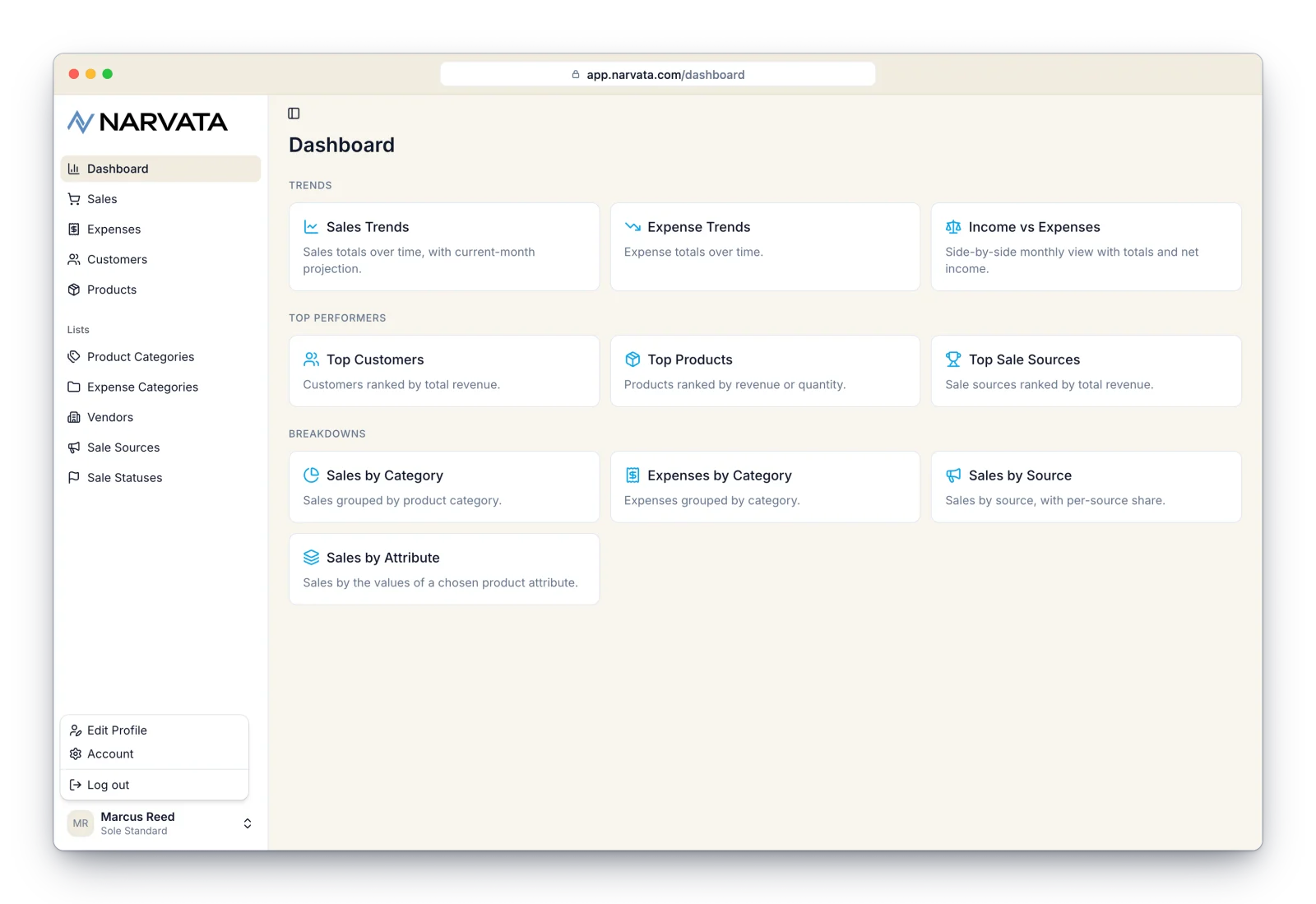
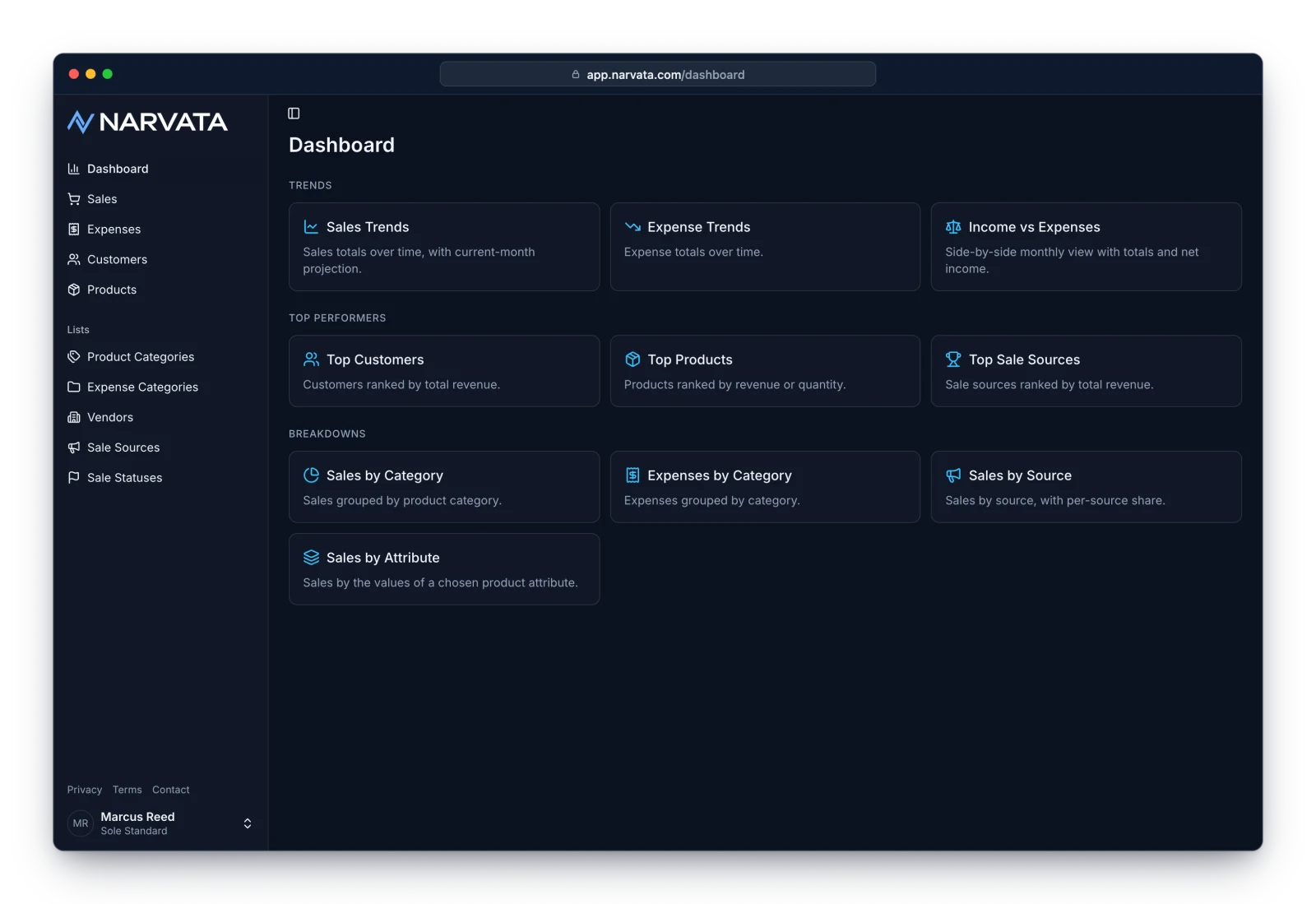
Narvata also fully supports dark mode. It follows your computer's light or dark appearance setting automatically, so there's nothing to turn on.
Categories
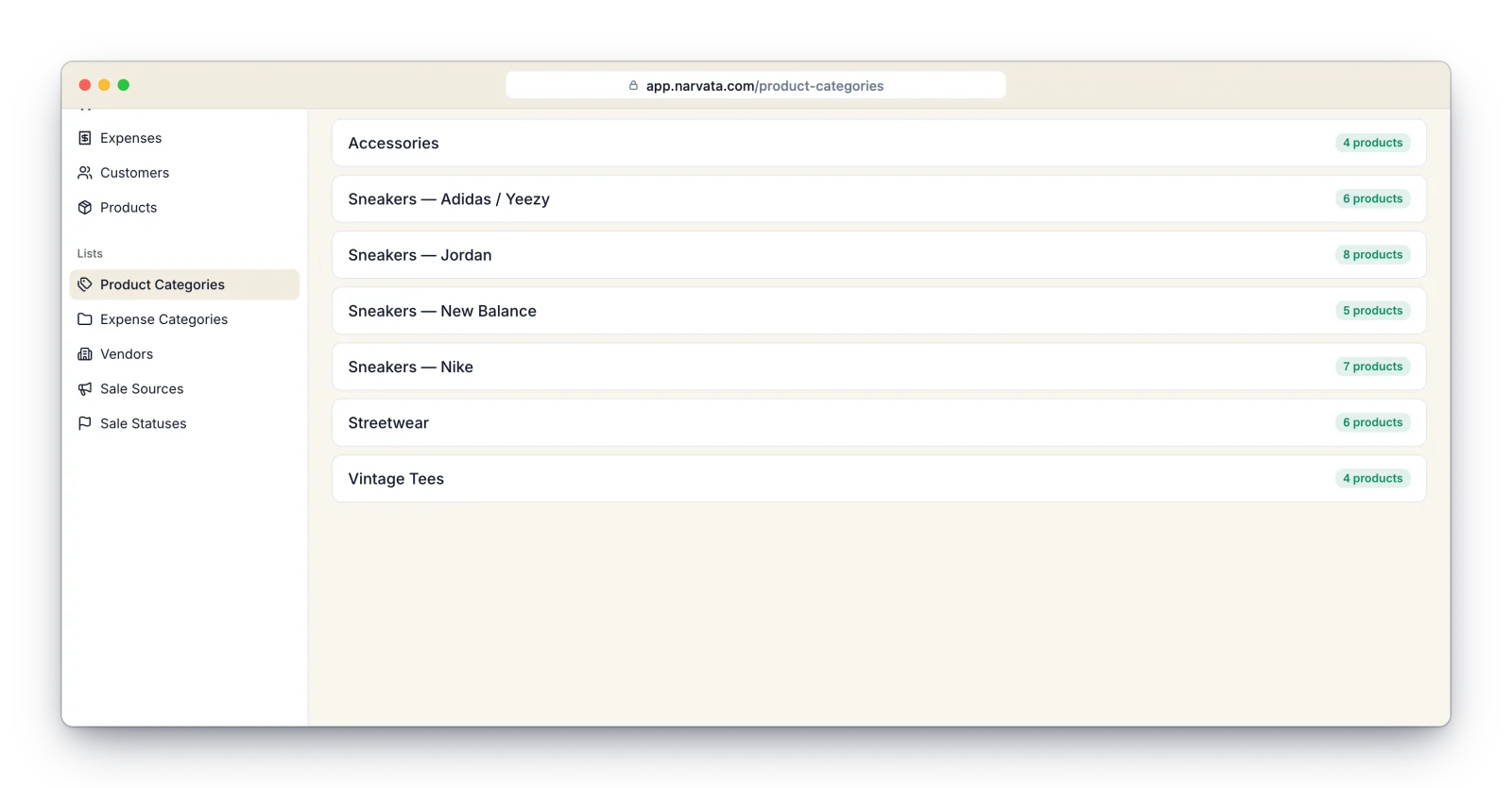
Every product or service you sell must belong to a category. This keeps your catalog organized and powers more useful reports. So before you create your first item, create at least one category.
For example, a clothing boutique might have categories like Menswear, Womenswear, Kids, and Jewelry. If you're a golf instructor, a category might be "Golf Lessons", with items like "60-minute lesson", "90-minute lesson", and "3-hour lesson" under it.
Open Product Categories under the Lists group in the sidebar, then click Add category to create one.
Products & Services (also called "Items")
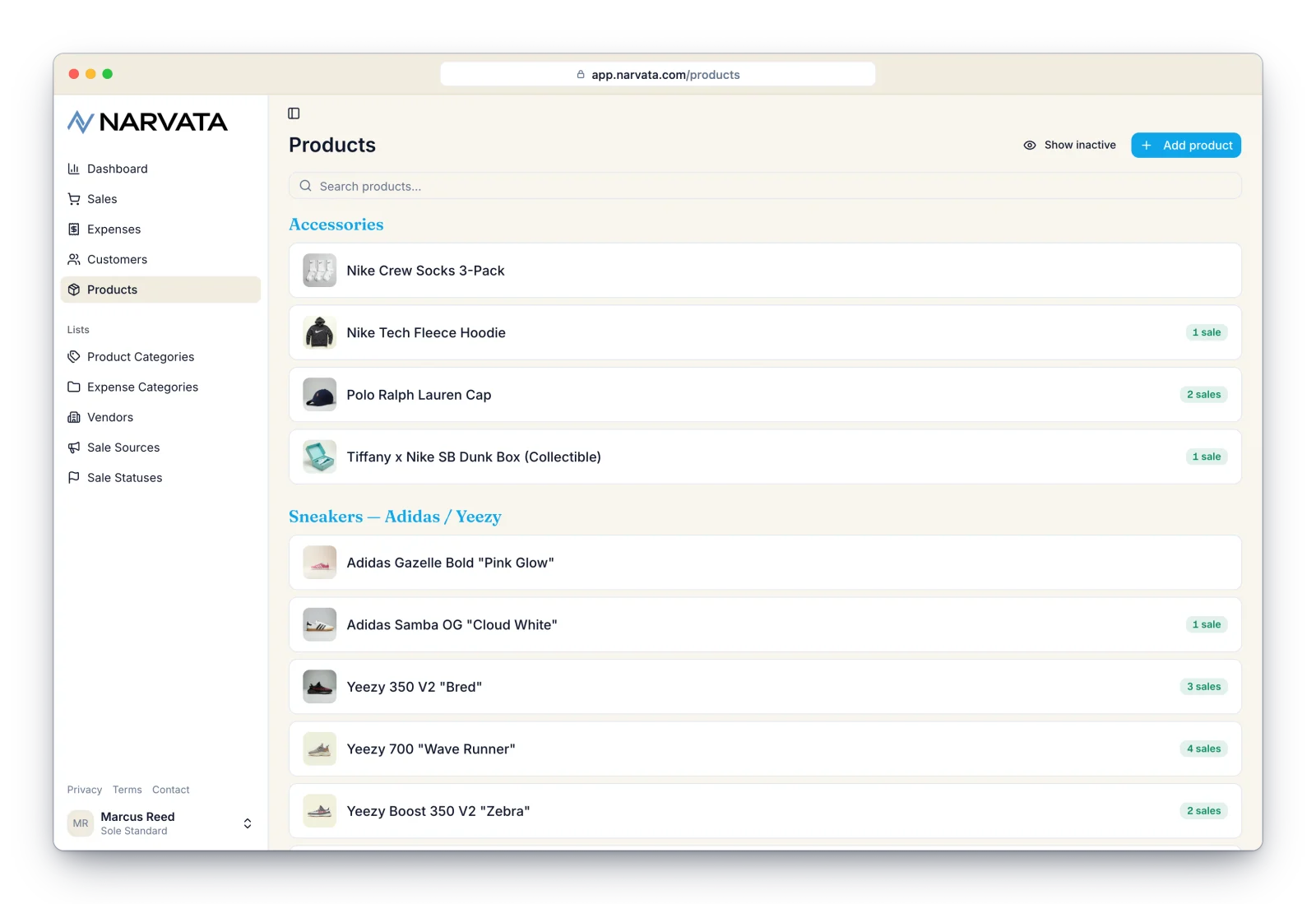
Anything you sell. This could be widgets, cars, houses, insurance policies, paintings, billable time, haircuts, golf lessons, or whatever it is that you wish to track the sales of. Open Products in the sidebar and click Add product. You'll give each item a name, assign it to one of the categories you just created, and optionally set a default price and a photo. You can enter as many items as you like. The Products list groups your items by category and shows how many sales each one has appeared in.
Customers
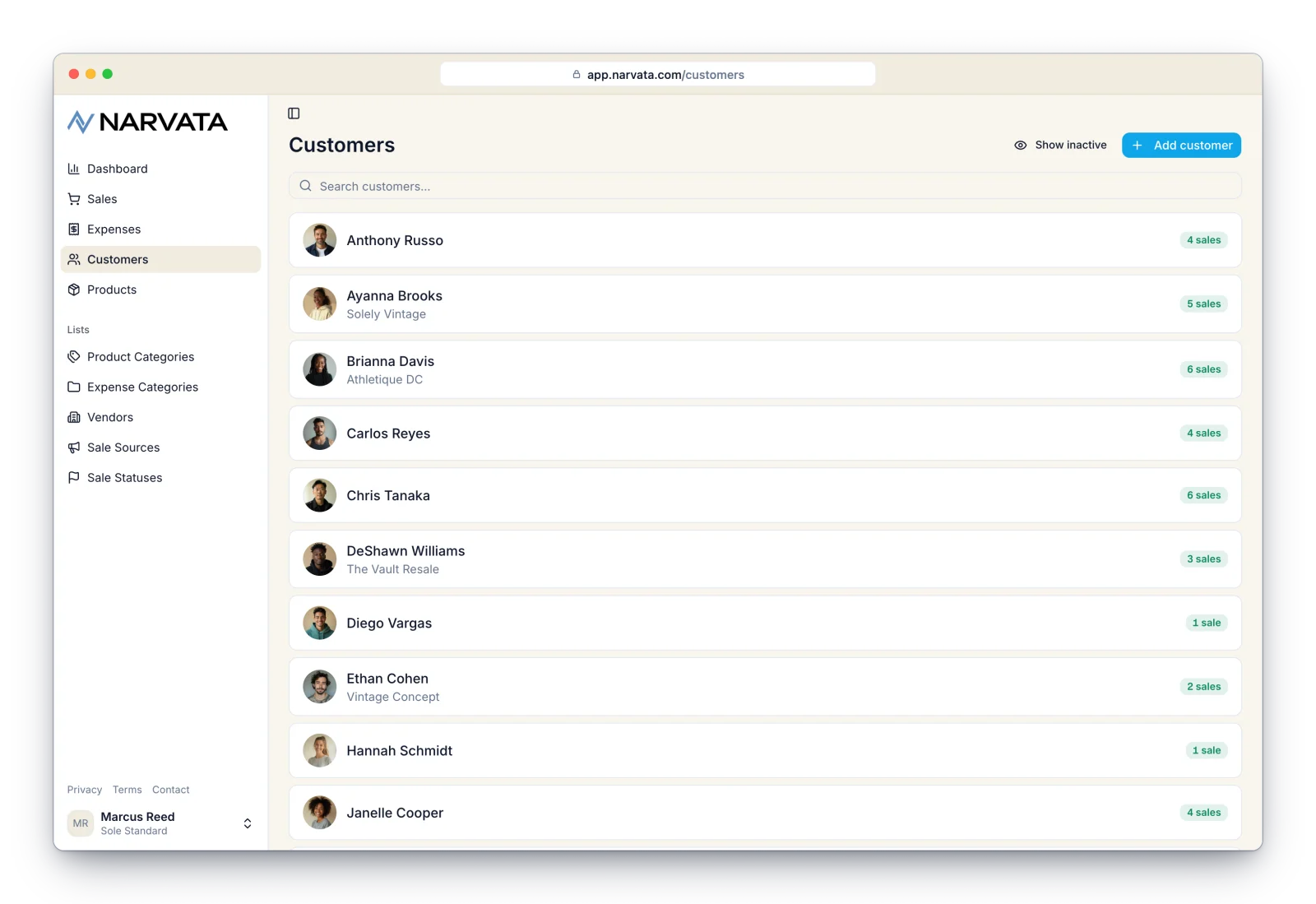
Anyone you sell things to. Narvata lets you keep an address book of all your customers: their name, company, photo, email, phone numbers, and address. Open Customers in the sidebar and click Add customer. You can add customers any time; you'll also pick from them when you record a sale.
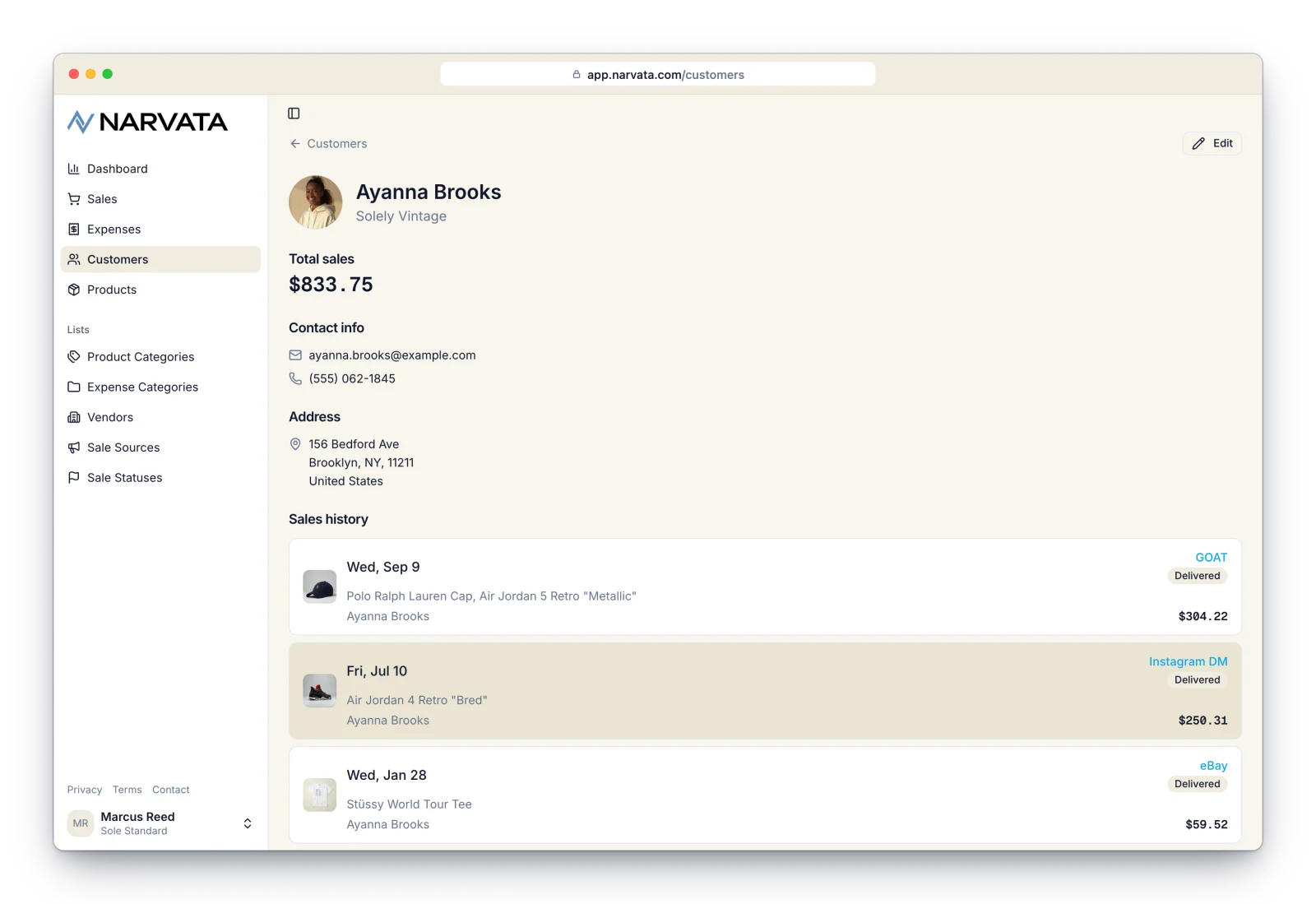
Click any customer to open their details. Along with their contact info and address, you'll see their total sales and their full sales history, which makes it easy to spot your regulars and see what they usually buy.
Sale Sources
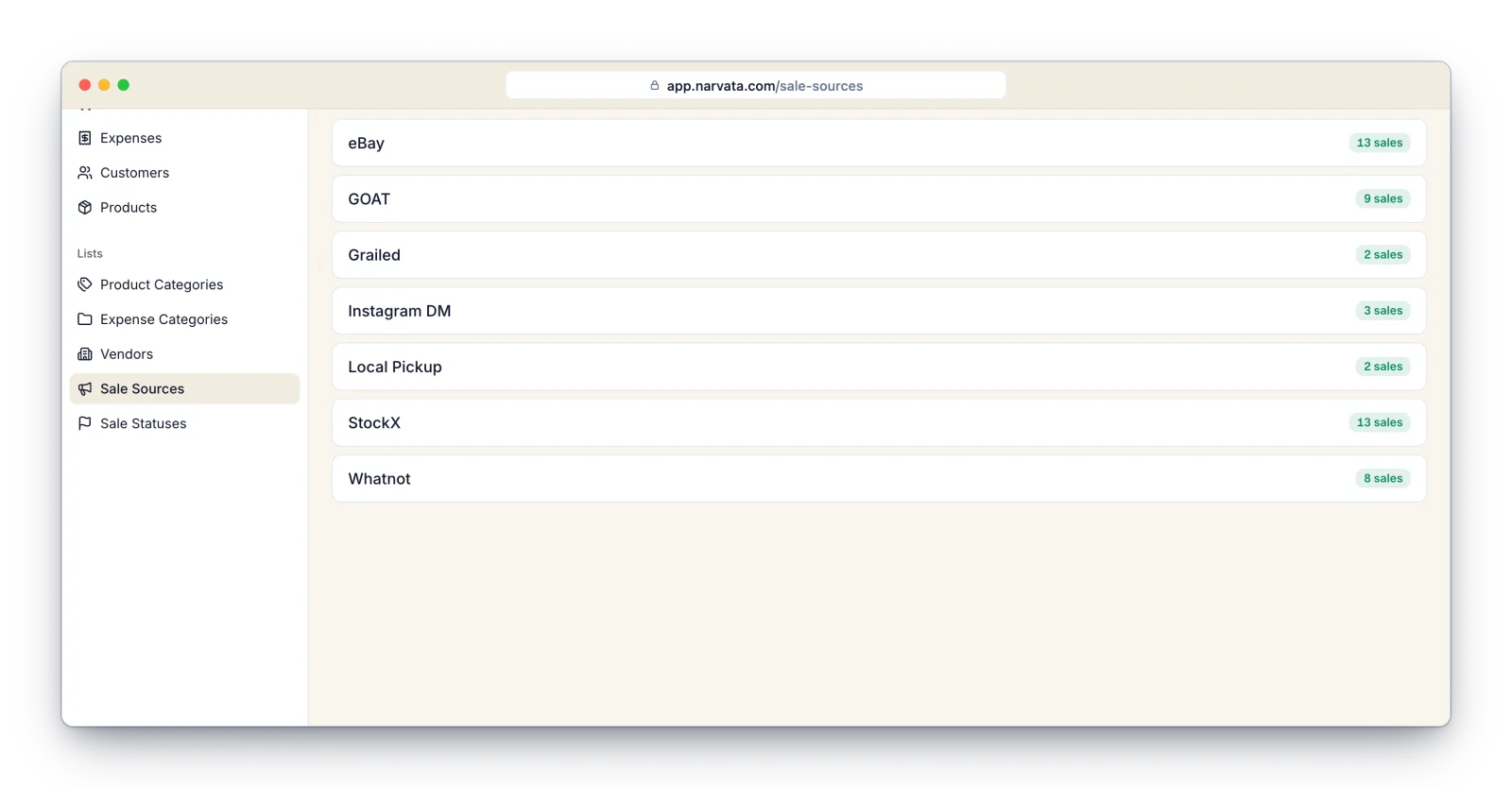
Sale sources track where your sales come from. These could be referral sources (e.g. Online Ads, Yellow Pages, Mailing Lists), the names of your sales people, the locations of your branches, or your various ad campaigns. Although optional, we highly recommend entering one or more sale sources to identify the growth channels for your business. Open Sale Sources under the Lists group and click Add source.
Sales
A sale is what ties everything together, and captures who bought what, where, when, and for how much. Think of it as an invoice or receipt that records everything about what you sold. The Sales screen lists your sales newest-first, grouped by month with a running total for each month, and you can search across customers, items, and sources at the top.
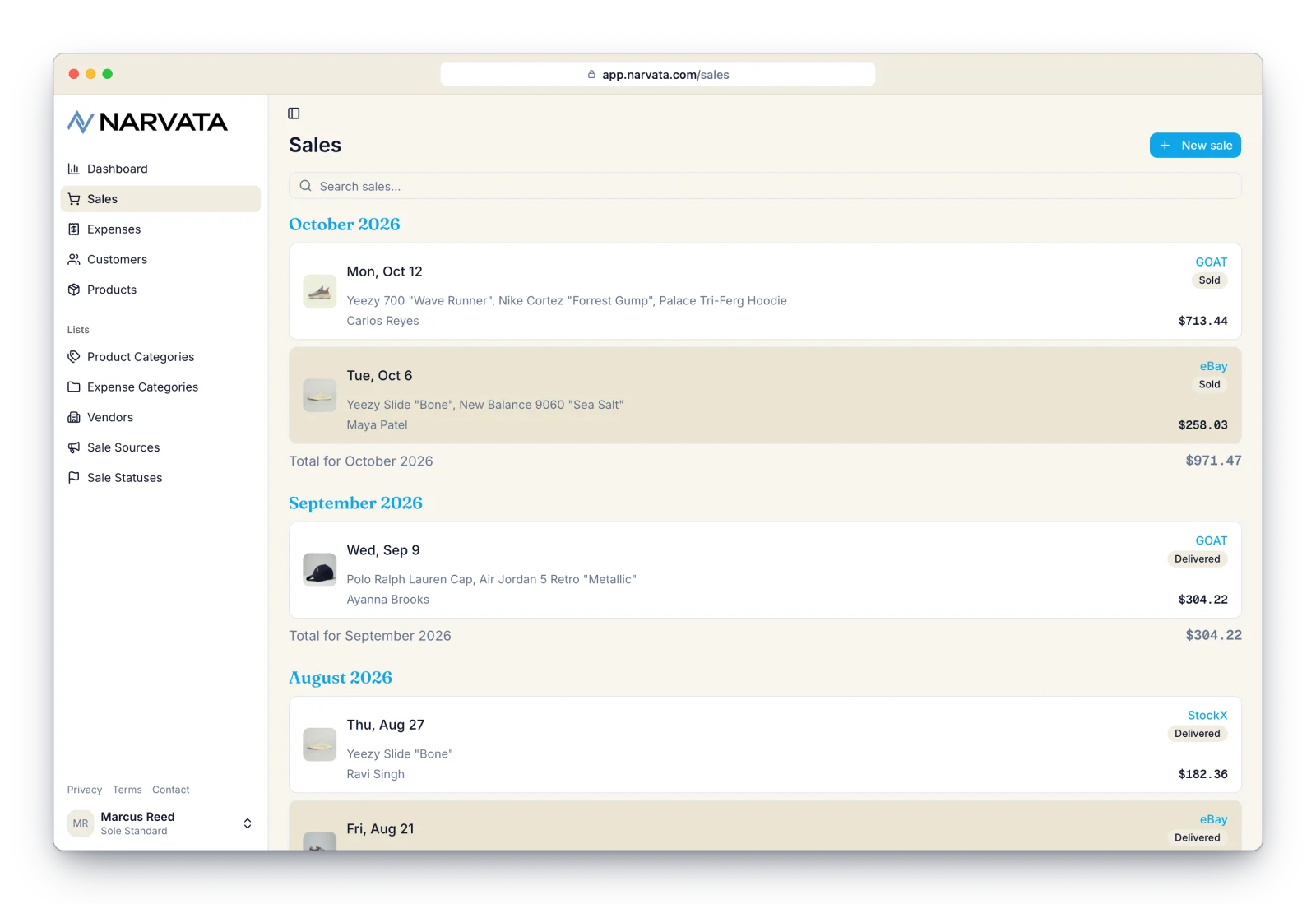
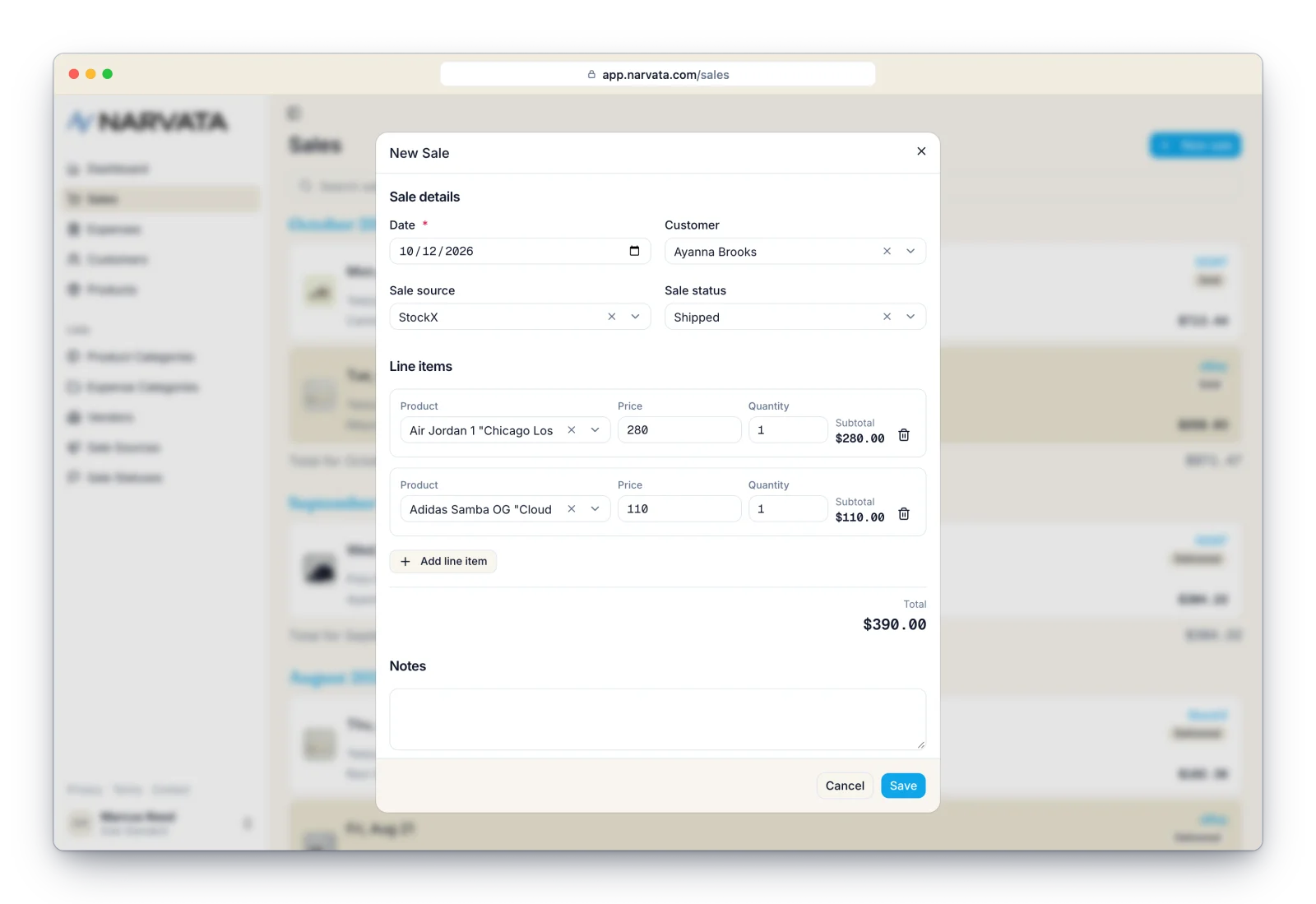
To record a sale, open Sales and click New sale. A dialog opens with the date already filled in: today for your first sale, then the date of the last sale you entered, which saves time when you're catching up on a batch from the same day. Pick the customer, sale source, and sale status from your lists; start typing to search them.
Next, add what was sold: under Line items, search for a product, and its default price fills in for you (adjust it or the quantity as needed). Add as many line items as the sale needs, and the total updates automatically as you go. If you'd rather not itemize a sale, leave the line items empty and type a short Description and the Total instead. You can add notes at the bottom, then save. Because Narvata builds sales from your existing records, it helps to have your categories, products, customers, and sale sources entered first, which is why we covered them in that order above.
Sale Statuses
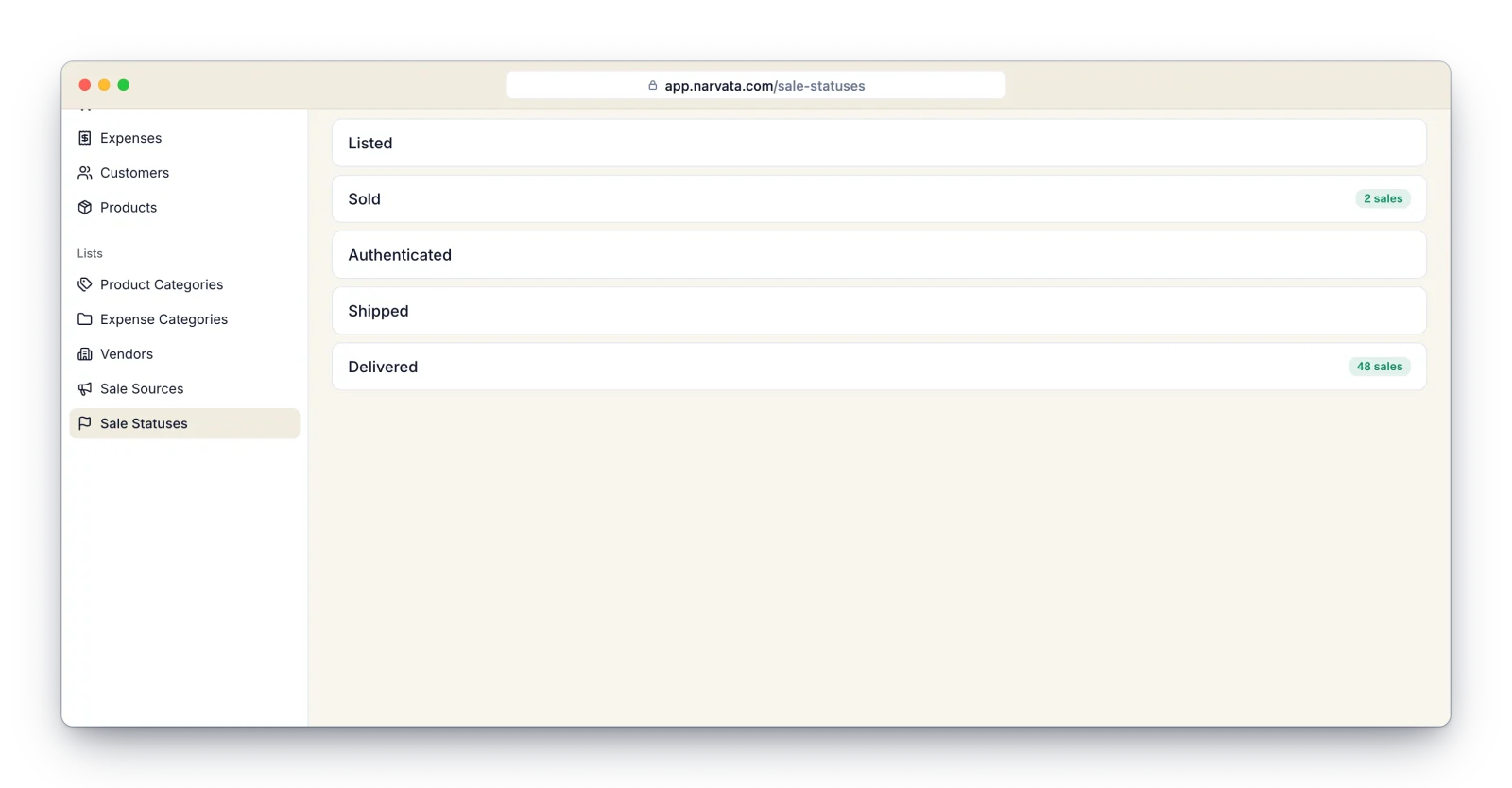
Sale statuses track where each sale stands in your workflow, such as Invoiced, Paid, Shipped, or Delivered. Create the stages that match how you work under Sale Statuses in the Lists group, then click Reorder and drag them into the order they happen. Each sale shows its current status on the Sales list, so you can see at a glance what still needs attention. Custom sale statuses are a Premium feature.
Dashboard
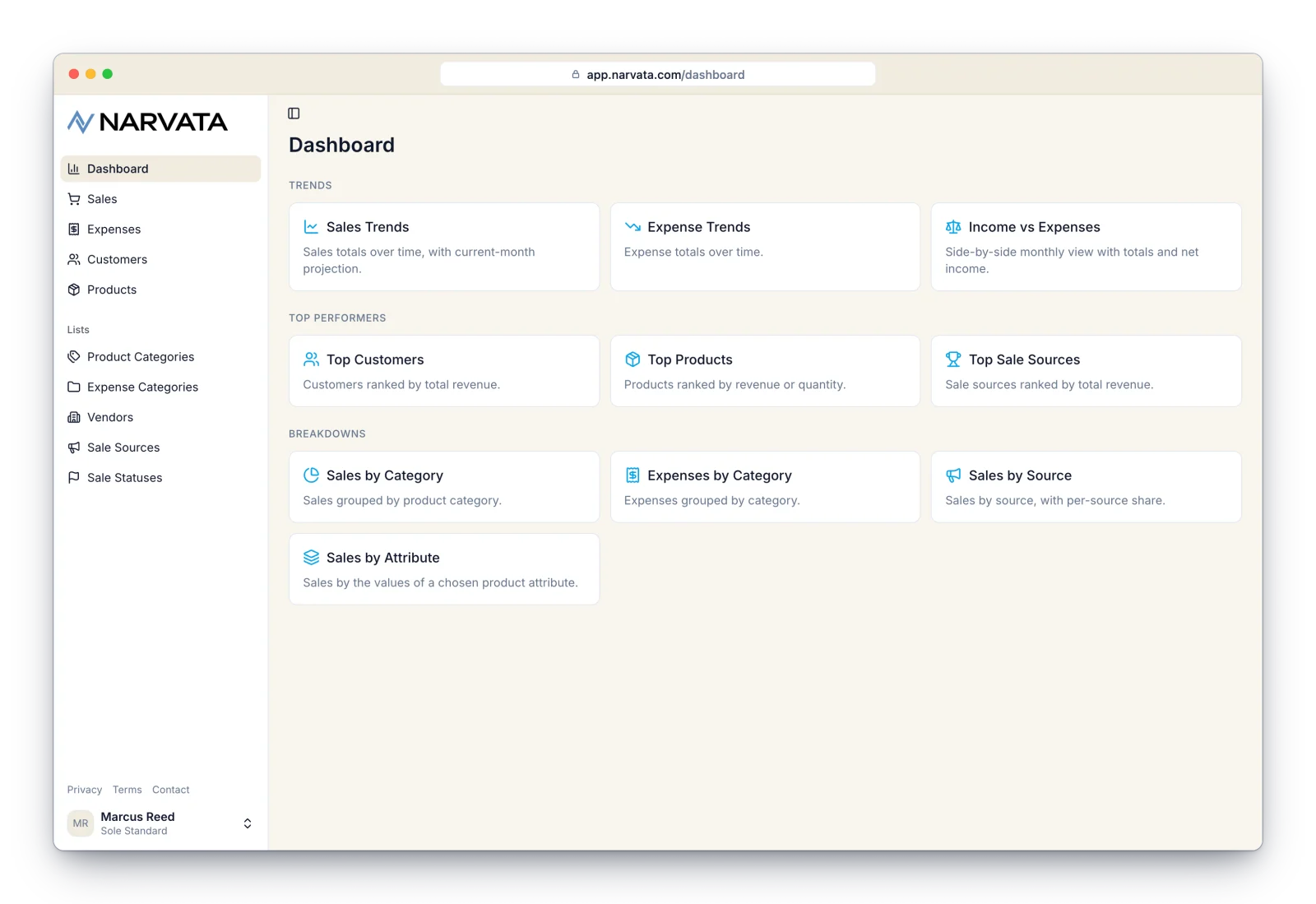
Once you've entered a few sales, head to the Dashboard. It's a hub of reports grouped into Trends (sales over time with a current-month projection, expense trends, income vs. expenses), Top Performers (your best customers, products, and sale sources), and Breakdowns (sales by category, expenses by category, sales by source, and sales by product attribute). Click any report to open it.
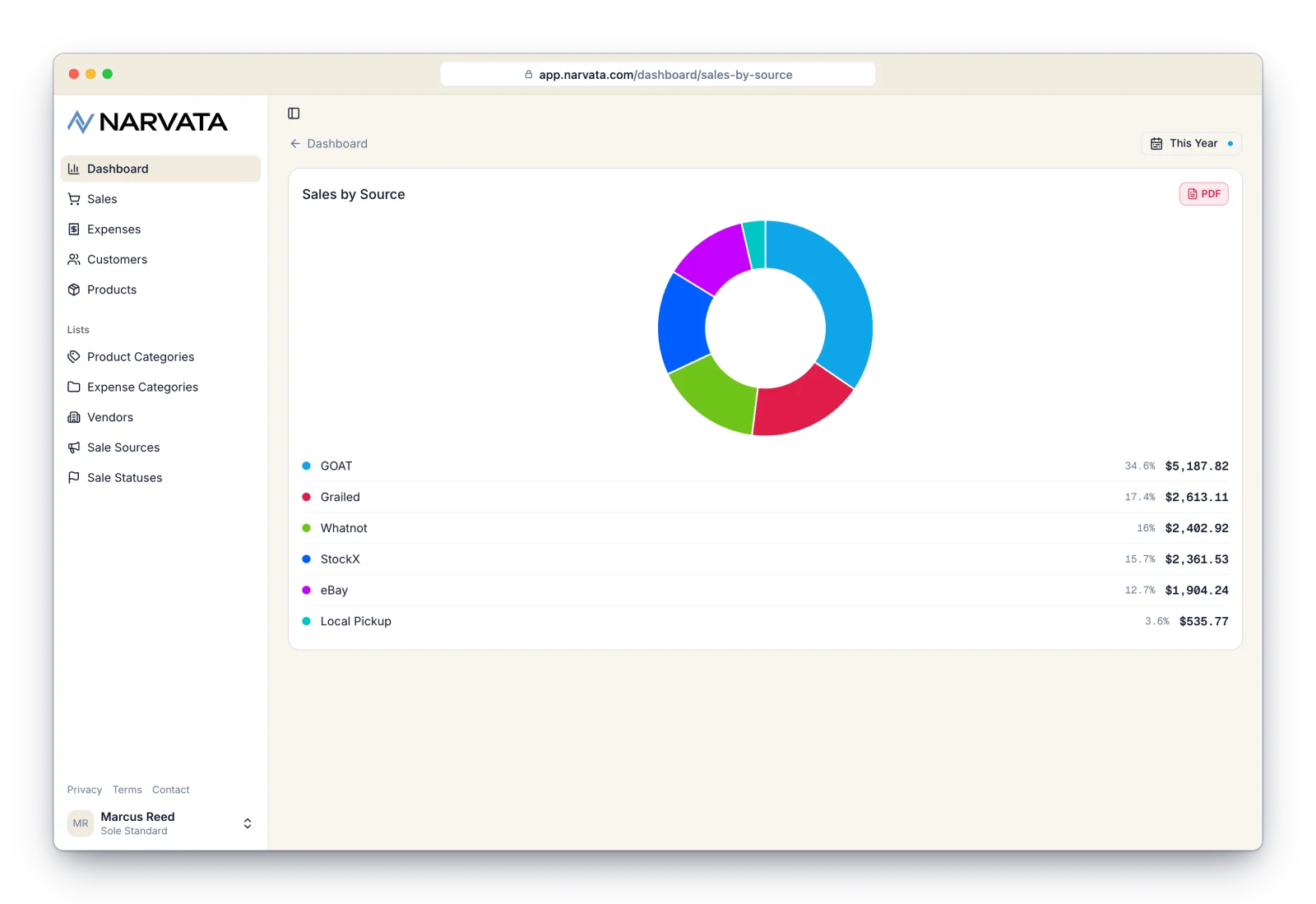
Inside a report, use the date filter in the top-right to narrow the range, and the red PDF button to open a polished PDF of that report in a new browser tab, ready to print or save. Reports update automatically and never need a manual refresh.
Here's the Sales by Source report, showing which channels brought in the most revenue this year. Note the date filter and PDF button in the top-right.
Expenses
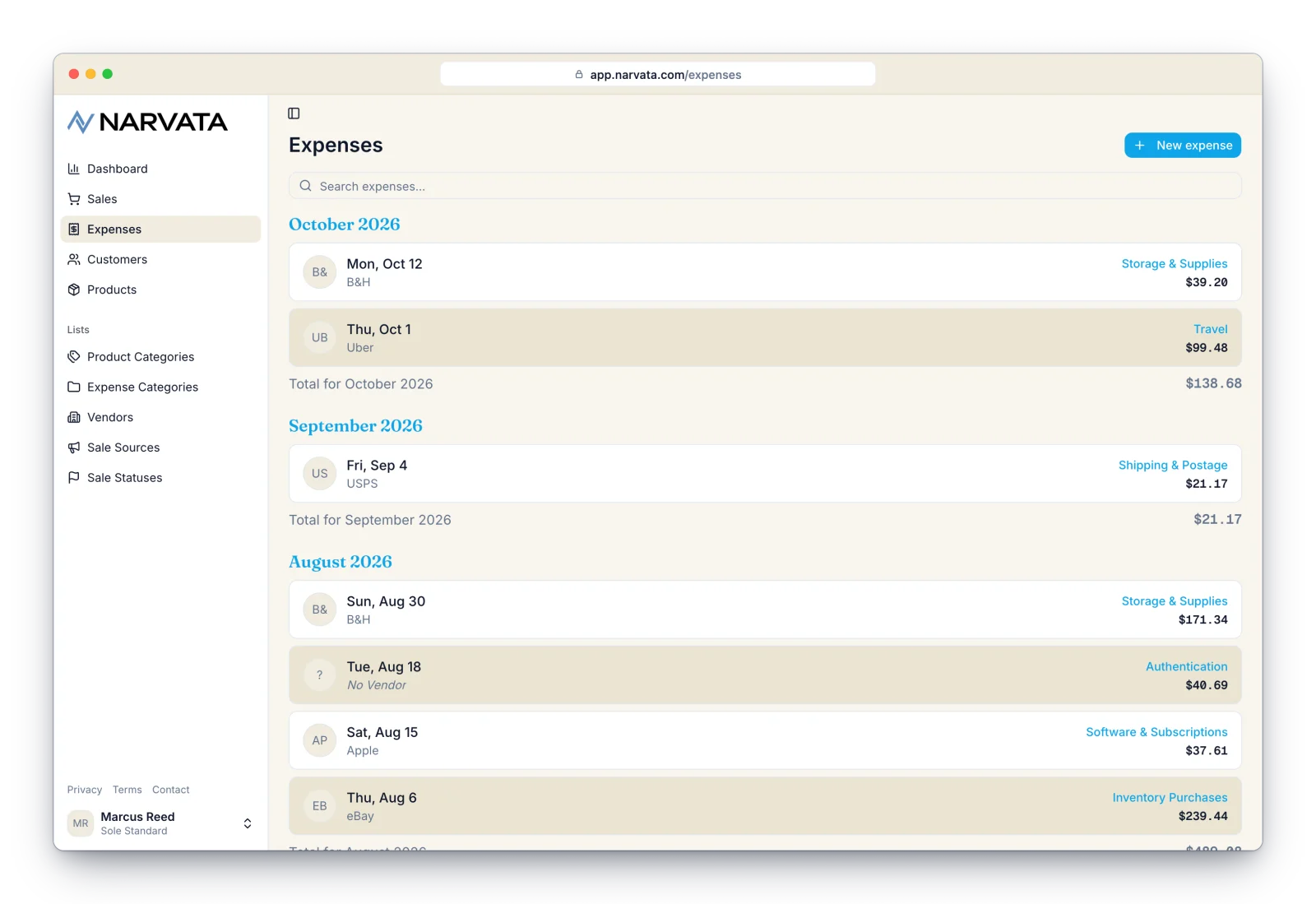
Track what your business spends from the Expenses screen. Each expense can be assigned to an expense category (e.g. Travel, Payroll, Fuel) and a vendor (the business you bought from), and you can attach a photo of the receipt. Manage your expense categories and vendors from the Lists group in the sidebar. Expense tracking is a Premium feature.
Exporting your data
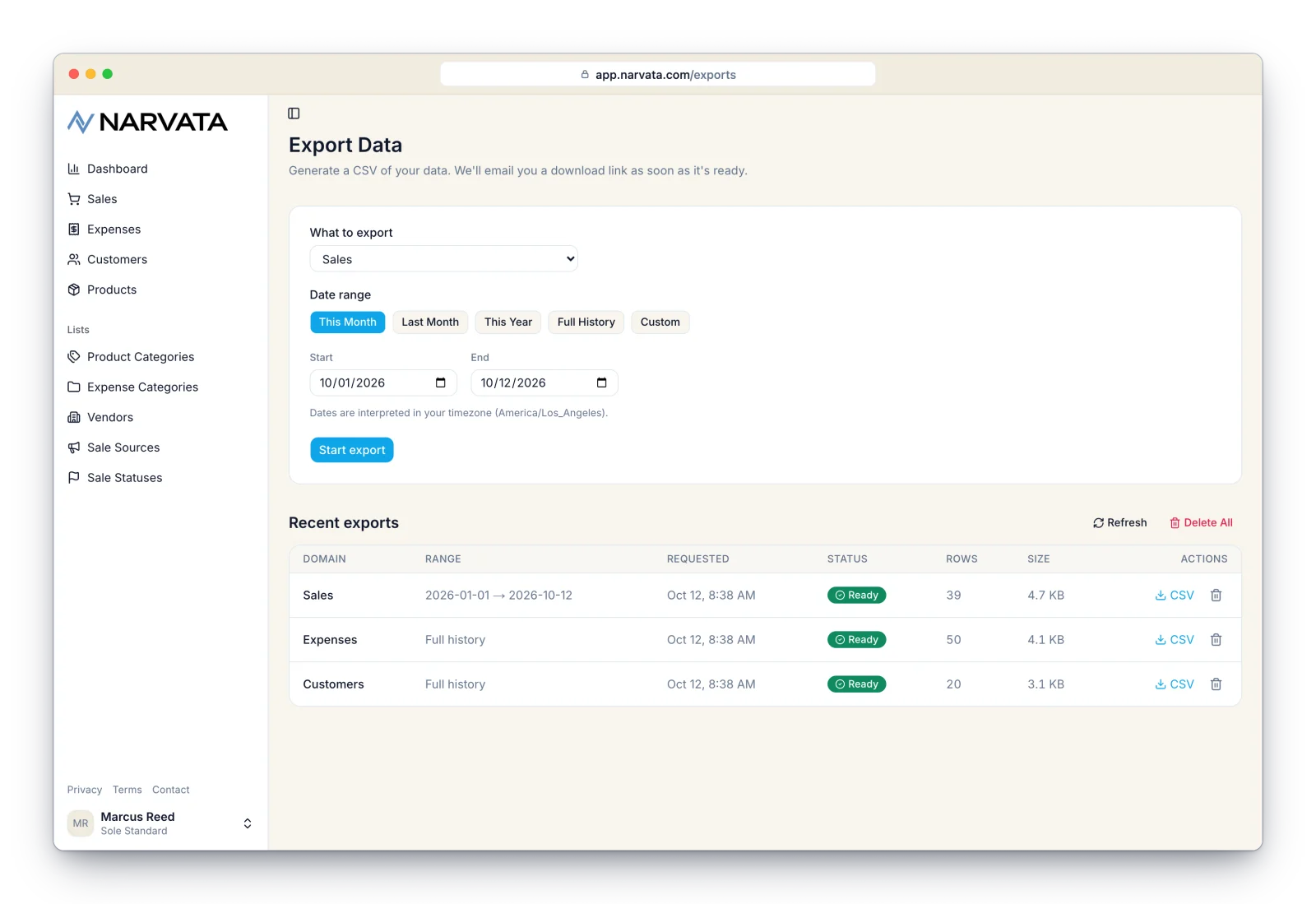
Need your data in a spreadsheet? Open Account from the menu under your name and click Export Data. Choose what to export (Sales, Expenses, Leads, Customers, or Products) and, for sales and expenses, a date range. We generate the CSV in the background and email you a download link as soon as it's ready, so even years of history export without tying up your browser. Your recent exports and their status appear in a list you can re-download from for two weeks.
Your account & upgrading
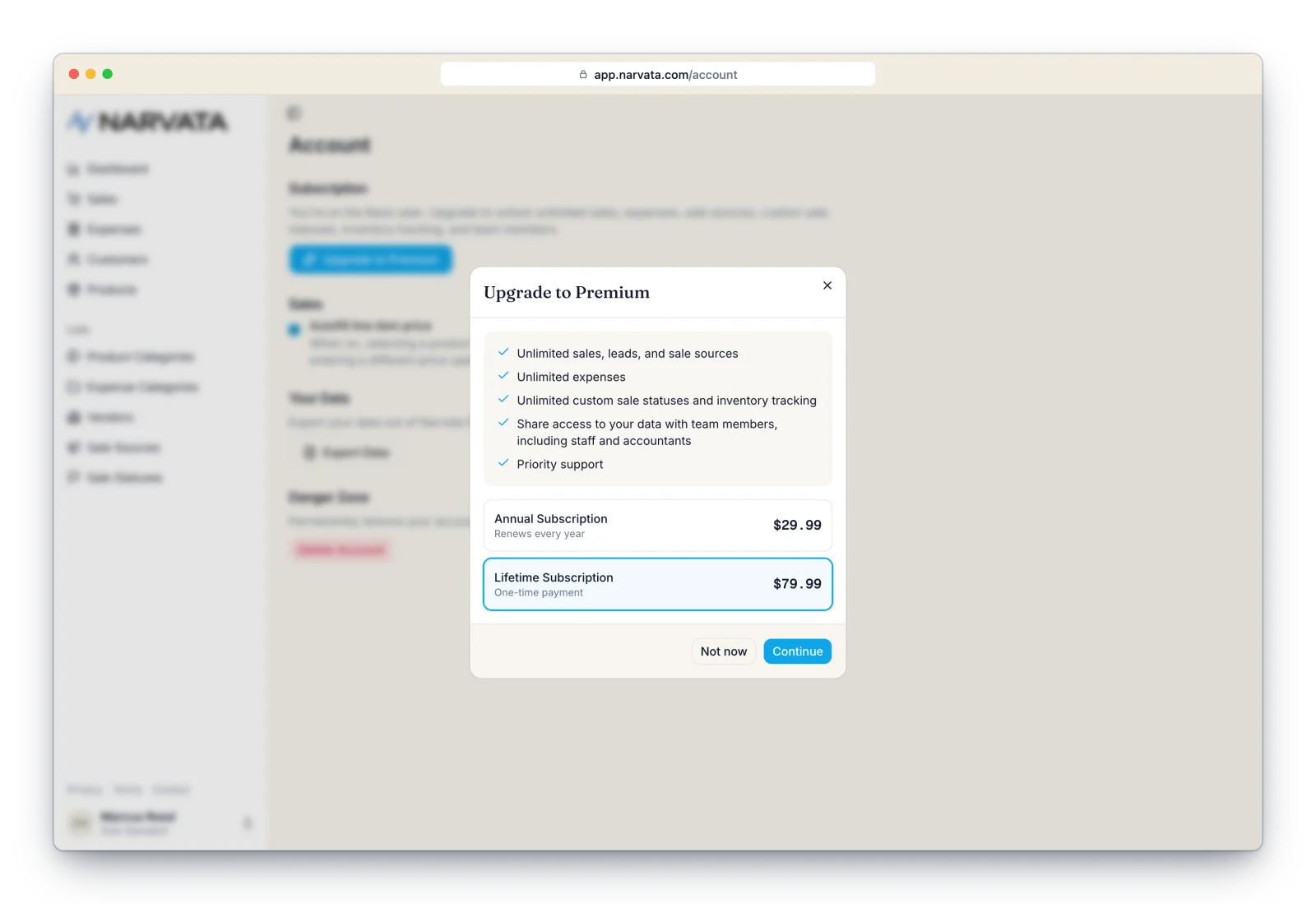
The Account page (under your name at the bottom of the sidebar) is home to your subscription, a few preferences (such as whether picking a product on a sale fills in its default price), data export, and account deletion. If you're on the Basic plan, you can upgrade to Premium right in your browser: choose the annual or lifetime plan and pay securely by card, no app required. To edit your name, business name, or currency, click your name and choose Edit Profile.
Working with your team
With Premium, you can share your business with the people who help you run it. Invite a teammate as an Admin (full access, including billing and team management), Staff (can add and edit sales, customers, products, and expenses), or Viewer (read-only, handy for an accountant or bookkeeper). Teammates don't need a subscription of their own. They can sign in at app.narvata.com, and Narvata shows each person only what their role allows.
Your data syncs everywhere
Narvata stores your data in the cloud and keeps it in sync across every device (iPhone, iPad, Mac, and the web) in real time. A sale you record on your phone shows up in the browser moments later, and vice versa. It's all one account and one set of data.
Tip: you can install Narvata so it opens in its own window, like any other app on your computer. In Chrome or Edge, click the install icon at the right end of the address bar. In Safari on a Mac, choose File > Add to Dock.
On the web and on the go
Everything you can do on the web, you can also do in the Narvata app for iPhone, iPad, and Mac. Use whichever one fits the moment.
The web is great at your desk: catching up on a batch of sales, reviewing reports on a big screen, or tidying up your product and customer lists. The mobile app is there when you're out: recording a sale at the counter or a market stall, snapping a photo of a receipt, or checking how the month is going. To get set up on your phone or tablet, see the iPhone & iPad guide.
Pricing
Although Narvata offers a free tier, you'll need a Premium subscription to fully utilize most of its features. The latest pricing is available on the pricing page.